Dexcom Share - real-time data stream
Dexcom Share is a service that sends data from the Dexcom app on your smartphone to the Dexcom cloud in near real time. This is what enables remote glucose monitoring through the Dexcom Follow app. When you enable Share in the Dexcom app settings (Settings > Share) and add at least one follower, your phone starts sending glucose readings to Dexcom servers.
This is the data stream Nightscout uses. The Nightscout bridge logs in to your Dexcom account, pulls data from the Share service, and sends it to your Nightscout instance. Nightscout acts here as "another follower" - except instead of displaying the data in the Follow app, it passes it on to your cloud system.
Key requirements for Nightscout:
Share enabled in the Dexcom app
At least one follower added (it can be yourself)
Data visible in the Dexcom Follow app
Correct Dexcom account login details (used in the Nightscout bridge)
No active Share = no data in Nightscout. It is that simple.
Dexcom Clarity - reporting and historical analysis
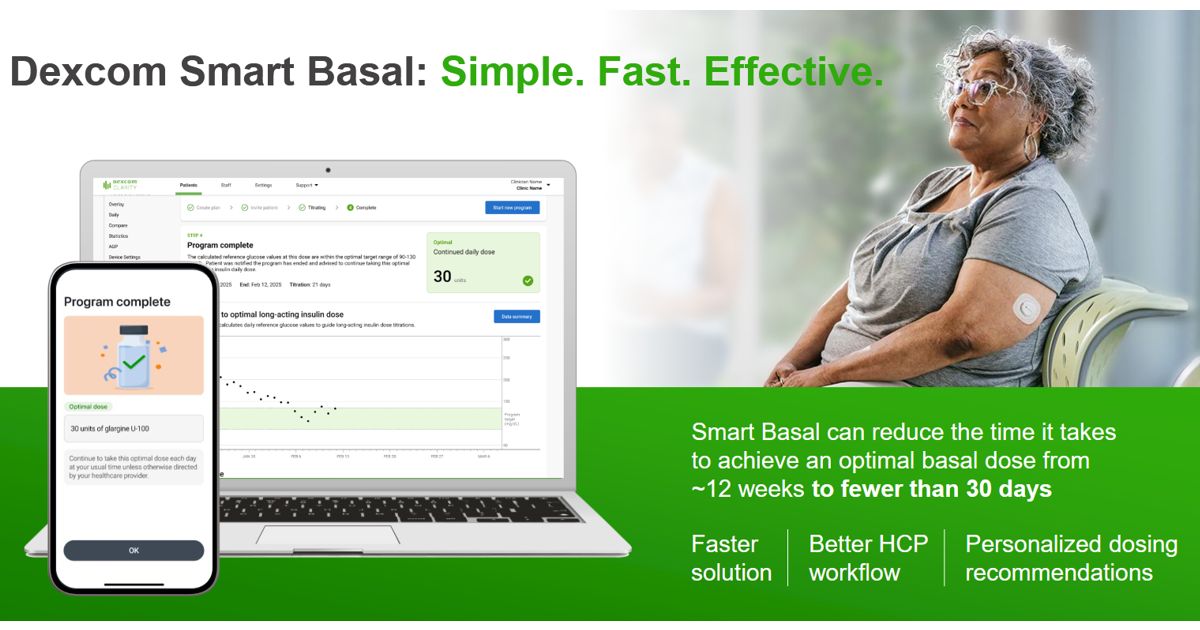
Dexcom Clarity, on the other hand, is a platform for analyzing historical data. You log in to Clarity (clarity.dexcom.com or clarity.dexcom.eu) and see reports: daily pattern charts, statistics, and trends. Clarity does not provide real-time data - it is a reporting tool, useful during appointments with a diabetologist or for your own analysis.
Importantly, Nightscout does not use Clarity to fetch data. Clarity is a separate system and does not provide a real-time data stream. The fact that you log in to Clarity with the same credentials as Share does not mean Nightscout can "pull" data from Clarity.
Why does this matter so much?
The most common Nightscout setup problem is confusing these two services. Someone enables Clarity, assumes the data has been "shared", and then wonders why Nightscout cannot see the readings. Nightscout specifically needs Dexcom Share and the correct login credentials.
There may also be separate issues with Dexcom Share itself:
New Dexcom accounts use an email address as the username, which can sometimes cause problems
Some accounts use a phone number with a country code and a "+" sign - this is not supported by Nightscout either
Passwords made only of digits can block the connection
Too many devices trying to fetch data from Share at the same time can lock the account for 10-15 minutes - Dexcom users should know this
In short
To run Nightscout with Dexcom:
Enable Share in the Dexcom app (Connections tab in the main menu)
Add a follower (for example, yourself)
Enter the correct login details in the CGM settings in the diab.ninja User Panel - more information is available in Dexcom Connect - use the same details you use to log in to the Dexcom Follow app
Check whether the data is visible in Dexcom Follow - if it is, Nightscout should see it too
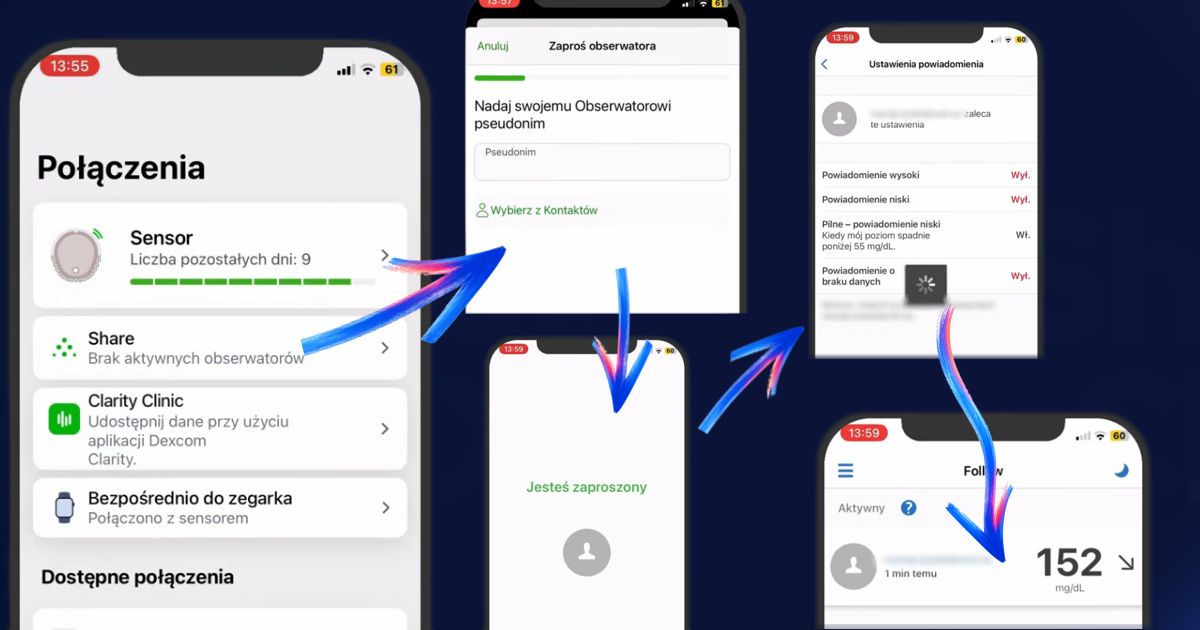
The video below shows how to configure this for Dexcom G7 (from around 10 minutes in; the whole video is genuinely useful):
You can treat Clarity as a separate, extra analysis tool, but it will not replace Share for Nightscout. These are two different services, and they are not interchangeable. Unfortunately, Dexcom makes this distinction harder than it should be by keeping both under one account and giving them similar names.